
Year 8A – Mon. 15 June & Wed. 17 June 2020
Year 8B – Wed. 17 June & Thurs. 18 June 2020
Today you are going to make a mysimpleshow video on Slave Trade, for assessment purposes.
But, before we start today, here is a bit of feedback, in the form of an example video… Some of you made great mysimpleshow videos on “Why Euroeans went exploring”, but others did not do so well… Either the script was not written very well, or you did not edit the video effectively. The script as well as the editing of the video is important! Here is an example of an excellent video. Have a look at it so that you can see how it compares with the one that you have created last week. (You may see a big difference!)
Why Europeans went exploring. (2:28 minutes long)
So, here is your assessment task – You need to make a mysimpleshow video that answers the following question:
“What was it like to be a slave?”
I have put a PowerPoint Template in “Materials” in Schoology. You must use this template to write the script. (That’s right, again you will have to write your own script for the video on “What was it like to be a slave?”!) Then you need to make the video in mysimpleshow.
You get today’s lesson as well as the next lesson to work on this task.
The video is due no later than:
12h05 on Wednesday, 17 June (for Y8A)
and
9h50 on Thursday, 18 June (for Y8B)!
Read the information below before you continue with today’s lesson!
IMPORTANT TIPS for you to take into account when making the video:

1. Before finalising the video listen carefully to the voiceover and make sure that it speaks satisfactorily. (For example, in many of your Exploration videos the voice read trade “routes” as trade “rauwts“…) If the voice pronounces a word incorrectly you may need to “trick” the program by spelling the word differently. In this case, if you had to spell the word as “roots”, the voice will probably read it correctly.
2. Make sure that the images you use make sense! For example, if your text says “navigation instrument” you should not use a “saxophone” to represent the “instrument”! Or, do not use an image of a “girl” for the word “monarch”. These images simply do not make sense… What you need to do is to search for more suitable images in the SEARCH function on the right. (For example, search for “compass” or “navigate” or even “GPS” to get a suitable image that will make more sense for “navigation instrument” than a “saxophone”!)
3. Make sure that the character images that you use make sense too. For example, do not use the same image for two different people. (E.g. Ptolemy and Pliny were not twins – you cannot use the same image to represent both of them!)
4. If the mysimpleshow program does not have a suitable image for the word / words that you want to represent in a scene it will simply give you a box that looks something like this:
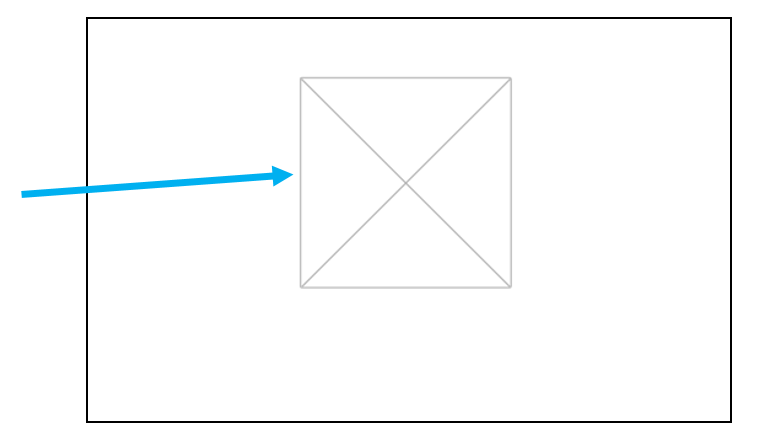
This image cannot be used because, once again, it just does not make sense!
For example, the program may not be able to suggest an image for “technical advances”. If this is the case you need to “trick” the programme and search for a word like “machine” or “gears”, which may give you an image that can sort of be a symbol of “technical advances“. Alternatively, you can:
- Write the words “technical advances”, using the TEXT function on the right.
- Find a suitable picture on google and upload it…!
- Simply de-select the keyword / key phrase and do not use an image for it at all. (Hover over the word in the text and click on the minus to de-select a word.)
Remember all these options for next time!
5. Try not to place images in the top right corner of a scene as it will then be behind the mysimpleshow logo…
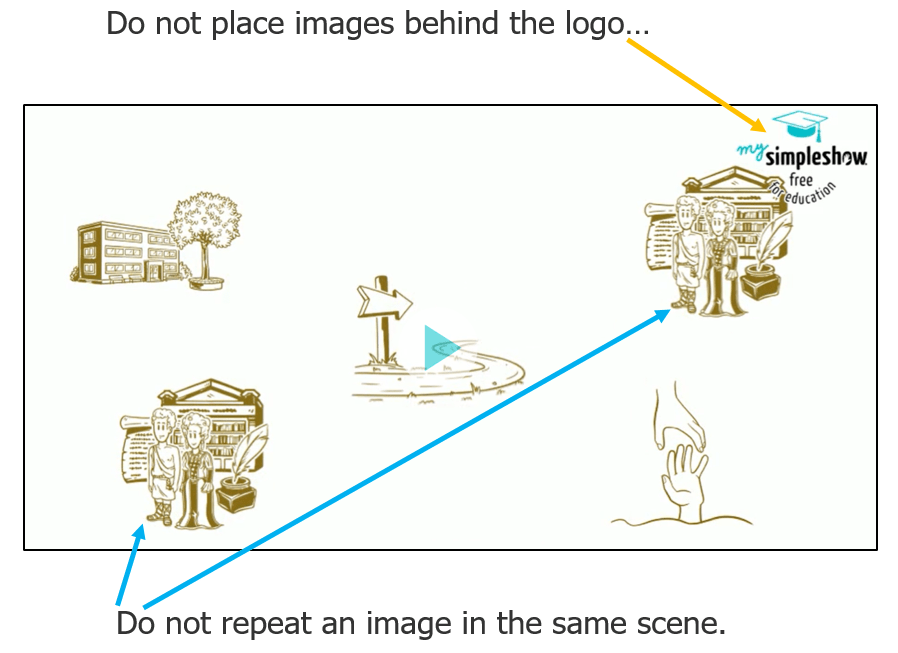
6. Do not repeat an image in the same scene – think of more interesting ways to display the same concept. (Perhaps use the image once and the second time use the TEXT function to write the word.)
7. Make sure that you use a variety of small as well as large images throughout the video. It makes the layout more interesting.
8. You have to use PUNCTUATION!! That is the only way that the computer voice will know when a sentence begins and when it stops!! (Otherwise the voice reads the text without any pauses and it absolutely does not make any sense at all!!)
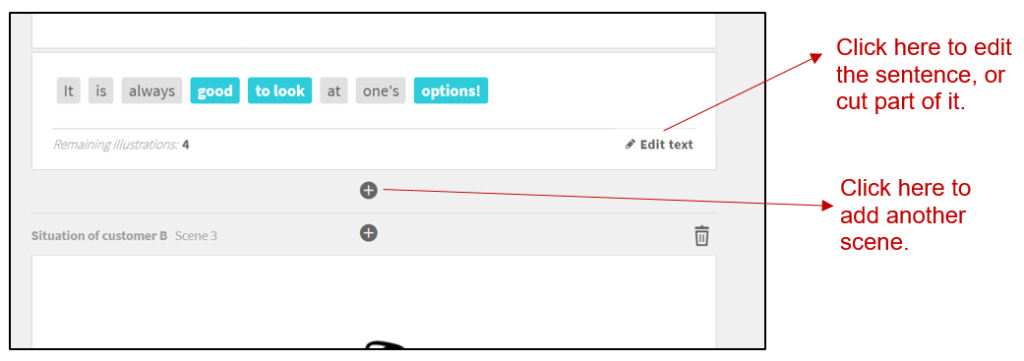
9. Make sure that there are no long “blank pauses” when you play the video. If there is, you need to select more keywords to include more images in the scene. If you have used the maximum number of images, you can split the scene:
10. Make sure that the conclusion to your video is good. A conclusion that says “I hope you enjoyed my video” is not a good conclusion! You need to conclude by giving a one or two sentence summary of the topic. If the topic is “Why did Europeans went exploring?”, a suitable conclusion could be something like. “Europeans, therefore, went exploring for a number of reasons – the most important of which is probably to find new uncharted territories.”
11. Before finalizing your video you need to check the video, by clicking PLAY VIDEO (top right).

Now, let me take you through the steps to make the new video:
1.
Download the PowerPoint Template called “What was it like to be a slave? – TEMPLATE” from Materials in Schoology and save it onto your computer.
2.
Use the template to write the script. You need to have an introduction. Then name and explain what it was like to be a slave. Make one point per slide and explain it on the next slide. Try to keep the explanations short, but make sure that they make sense! (You will see that the first slide, which will eventually be the first scene in the video, simply asks the question “What was it like to be a slave?”. This is a good way to start the script. Then after that, you need to fill in what the PowerPoint Template guides you to do, on each of the slides in the PowerPoint Template.)
3.
Log in to www.mysimpleshow.com
(You can click on the picture below to go straight to the website!)
4.
Upload your completed PowerPoint script onto mysimpleshow.
5.
Make the video in mysimpleshow.
6.
Send me the link (to your video) in Schoology mail.
7.
Let me know…how you have progressed by the end of today’s lesson by sending me a private message on Schoology to confirm that you have completed the tasks as instructed today.
8.
Once completed, send me a private message on Schoology (use the SAME mail-thread!!!) with the link to your mysimpleshow video.
REMEMBER: The video is due no later than:
12h05 on Wednesday, 17 June (for Y8A)
and
9h50 on Thursday, 18 June (for Y8B)!
(WordPress advertisements may appear below.)
 Best study methods