

Today, you are going to….
- look at important guidelines for making a good slides presentation
- see how to make a slide presentation in Google Slides
- practise using Google Docs
1.
You will often use Google Slides in your school career. Below is a video that explains briefly how to use Google Slides.

How To Use Google Slides. (5:21 minutes long)
2.
Creating an effective Google Slides presentation is all about clarity, design, and flow. Go through these guidelines and tips for creating a presentation with Google Slides. This a step-by-step guide to help you make a good presentation!
USING GOOGLE SLIDES

- Decide on key points: Before you start, list the main points or sections you want to cover.
- Keep it Short and Focused: Each slide should ideally cover just one idea to keep things clear.
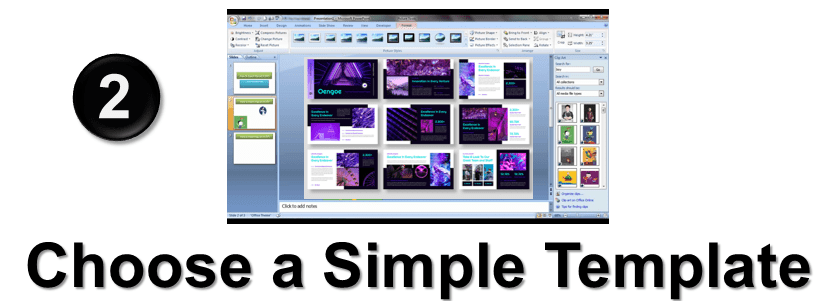
- Select from Google’s Templates: In Google Slides, there are various templates under “Theme” that are clean and easy to work with.
- Stay Consistent: Use the same template throughout.
- Blank Slides: Alternatively, use blank slides to create your own design from scratch.
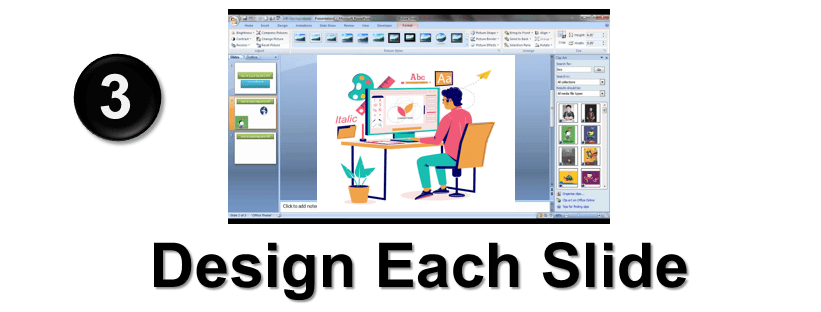
- Title Slide: Include a clear title, and your name.
- Minimal Text: Aim for 5–6 lines of text per slide, with no more than 6–8 words per line. Use bullet points to make reading easier.
- Font Choices: Stick to simple, readable fonts (e.g., Arial, Calibri). Avoid fancy fonts that may be hard to read.
- Font Size: Titles should be around 30–36 pt., and body text around 18–24 pt.
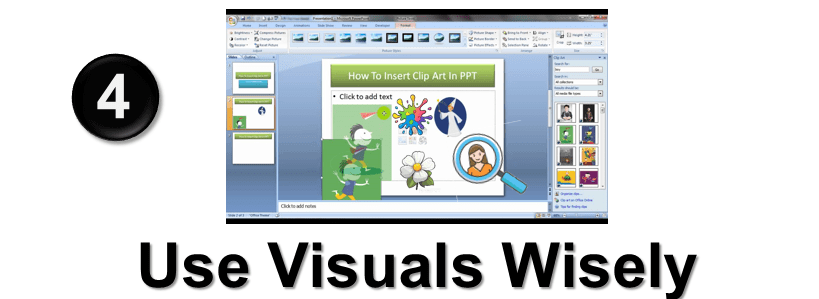
- Add Images, Charts, and Icons: Visuals help communicate your points and keep the audience engaged. Use Google’s “Insert” menu to add images, shapes, and charts.
- Limit Animations and Transitions: Stick to subtle transitions if you use any at all; too many can be distracting.
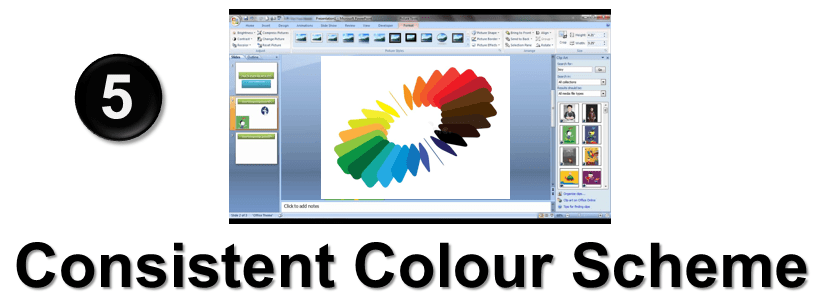
- Limit Your Colours: Choose 2–3 colours, to use for the background and for fonts, for a professional look.
- High Contrast: Make sure text colour contrasts well with the background for easy readability (e.g., dark text on a light background or vice versa).

- Logical Order: Arrange slides so each one naturally leads into the next.
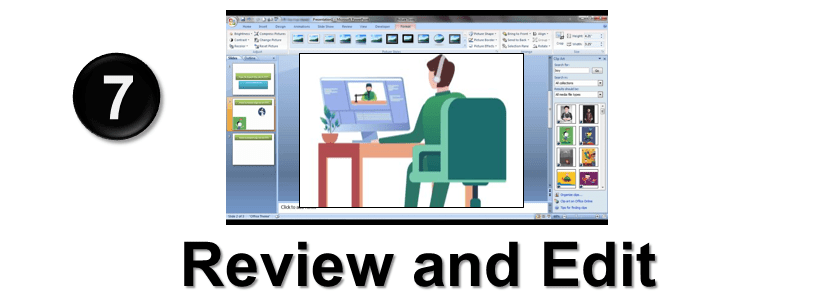
- Proofread: Check for spelling and grammar errors.
- Final Check: Go through each slide to ensure it flows well and makes sense.
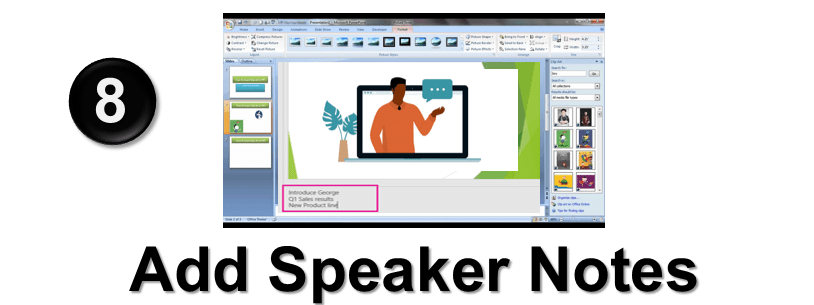
- Use Notes for Extra Detail: Add notes at the bottom of each slide in the “Speaker notes” area to remember what you want to say or to keep detailed info without overcrowding the slides. (This is only necessary of you need to present your slides in front of an audience.)
3.
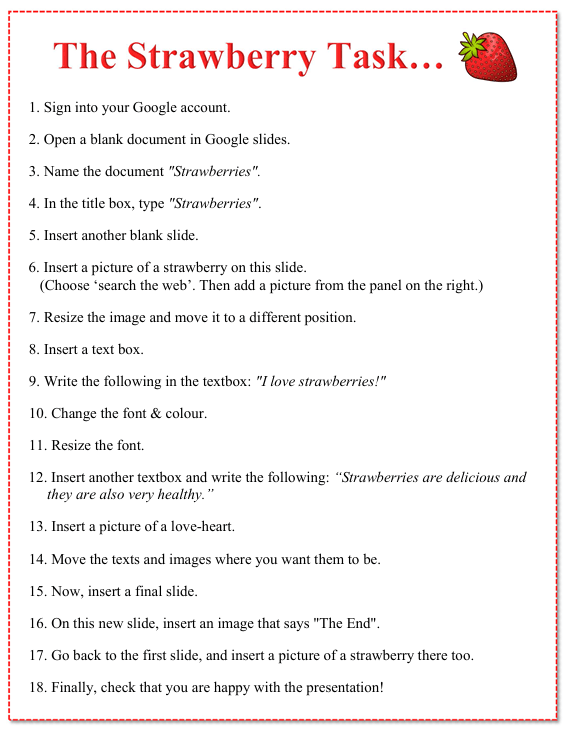
You are going to familiarize yourself with the basics of using Google Slides. This is just a “practise-run”. In another lesson you are going to do a project, creating your own set of slides!
For this “practise -run”, follow these steps precisely:
(For your convenience, your teacher will give you a paper copy.)
4.
In case you get stuck, here is some guidance:

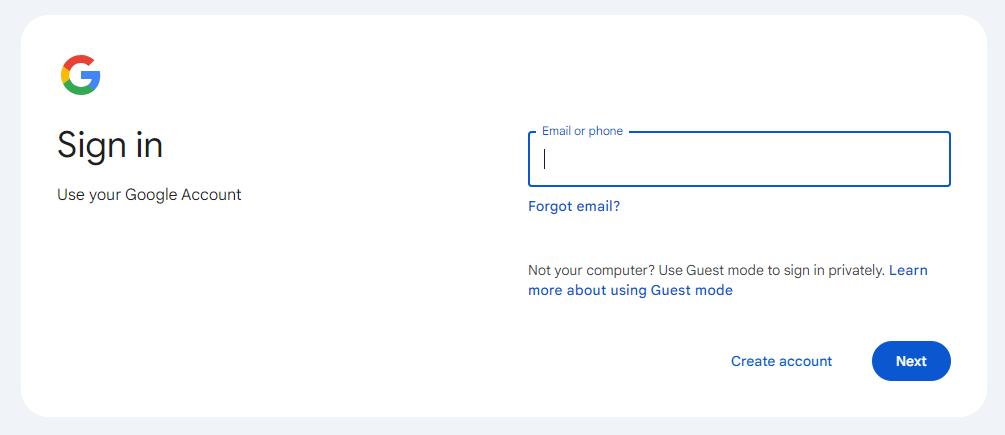
Sign into your Google account.
Click on this icon to sign into the account:

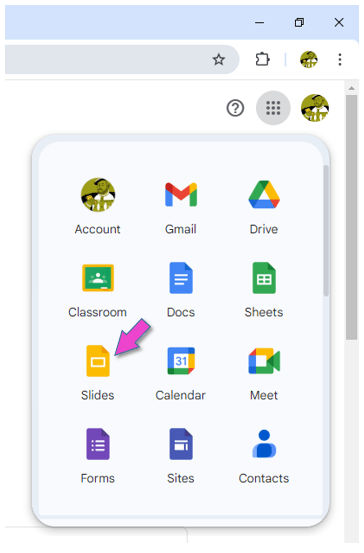
Open Google Slides.

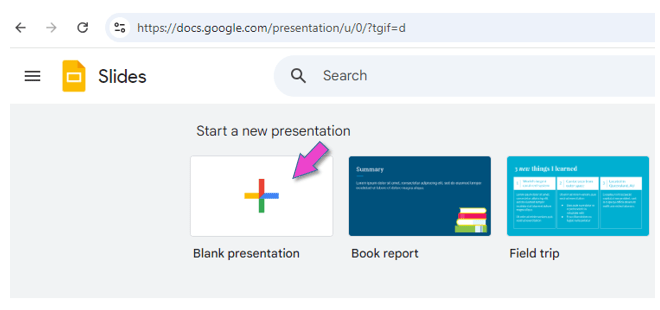
Click on BLANK PRESENTATION.

Give the document a name: “Strawberries”.
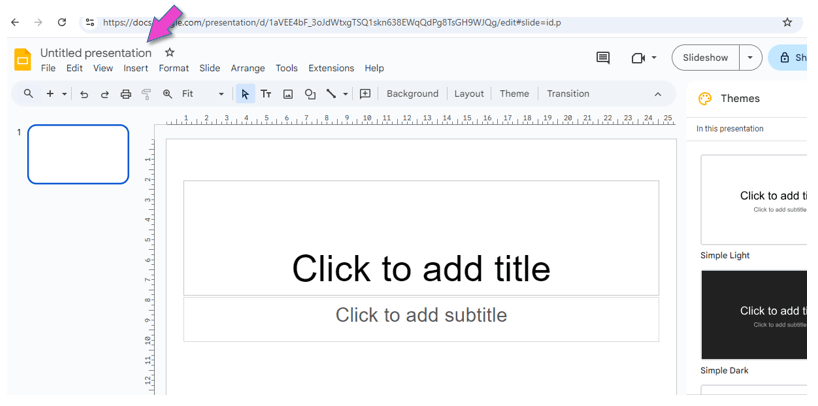

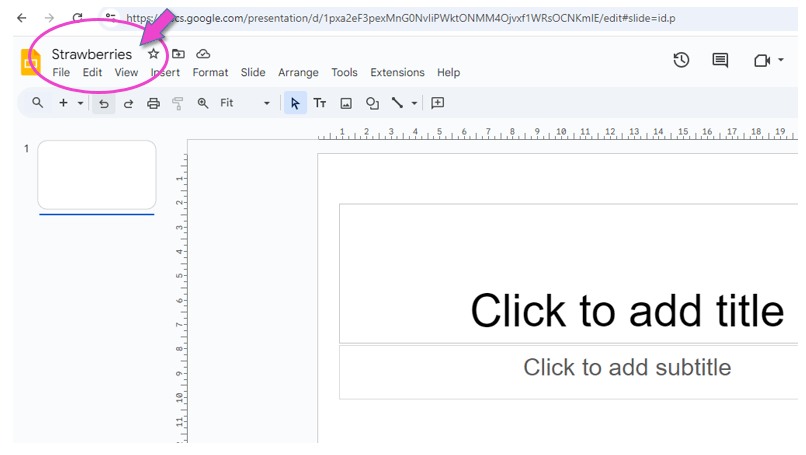

Create the document.
First close this side panel:
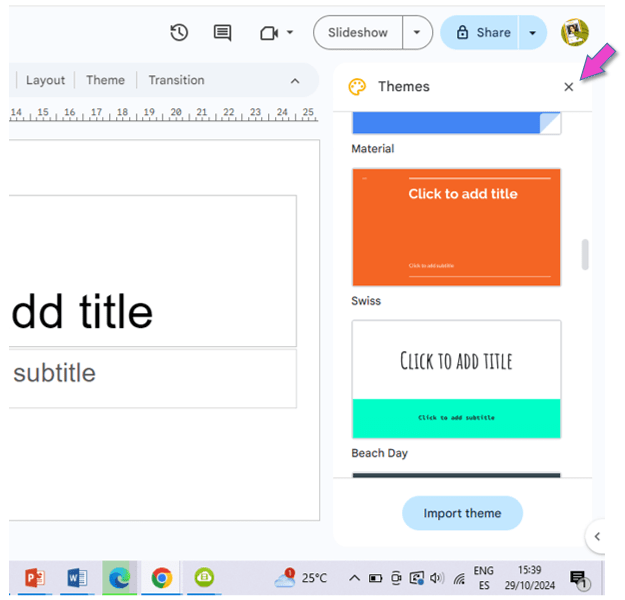
Now, in the title box, type “Strawberries”.
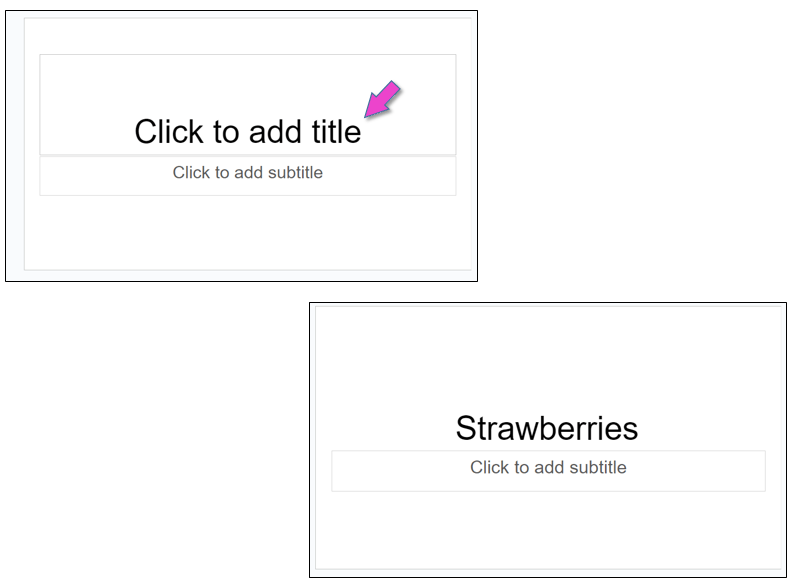
Insert another blank slide.
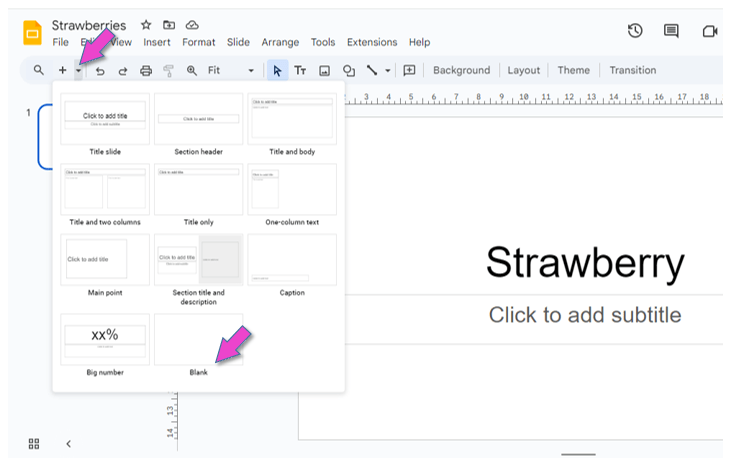
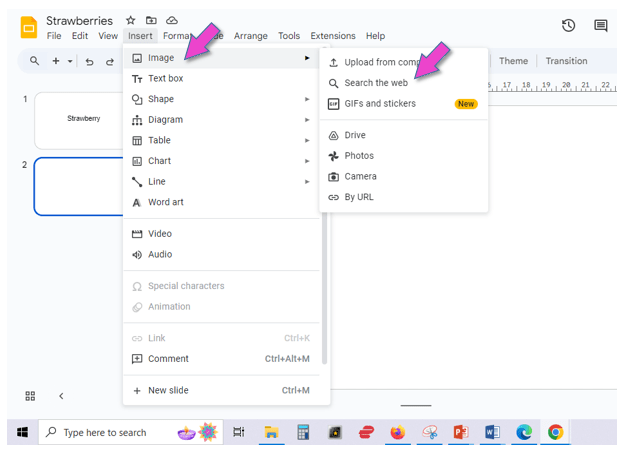
Insert a picture of a strawberry on this slide.
(Choose search the web. Then add a picture from the panel on the right.)
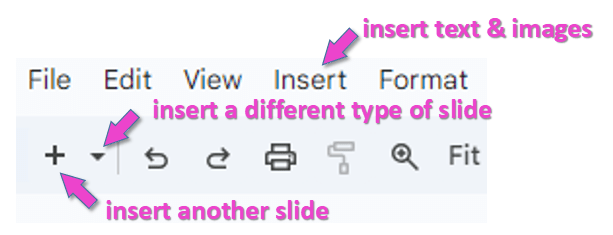
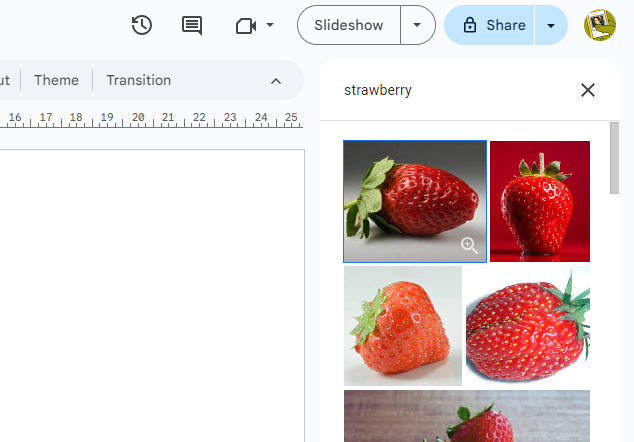
Resize the image and move it to a different position.
Next, insert a text box.
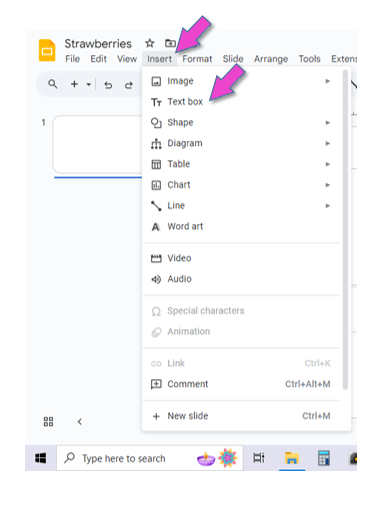
Write the following in the textbox: “I love strawberries!”
Change the font & the colour.
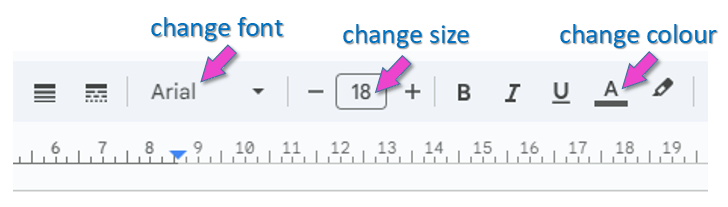
Also resize the font.
Insert another textbox and write the following: “Strawberries are delicious and they are also very healthy”.
Insert a picture of a love-heart.
Move the texts and images where you want them to be.
Now, insert a final slide.
On this new slide, insert an image that says “The End”.
Go back to the first slide, and insert a picture of a strawberry there too.

Sign out of your Google account.
This is VERY important, because everybody can log into the computers in the ICT room with the primary password!!!
5.
This is an example of the slide presentation that you had to create:



In the next lesson we will look at online safety, also known as cyber security. You will then make your own slides presentation on “Cyber Security”.

(WordPress advertisements may appear below.)
 Best study methods