
This lesson is based on teachcomputing.org lessons.

Today, you are going to….
- list an everyday task as a set of instructions including repetition
- predict the outcome of a snippet of code
- modify a snippet of code to create a given outcome
1.

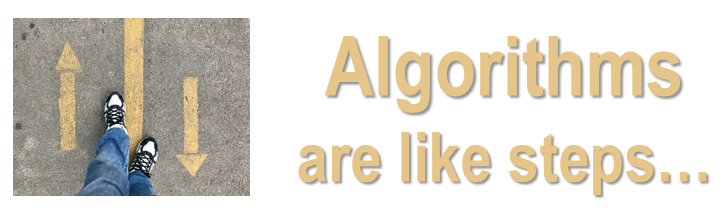
Computer programmers use codes and algorithms to tell computers what to do. One type of coding that we can use is called “block coding”.
2.
The videos below explain what block coding is.

ALL Scratch Blocks Explained in 2 Minutes. (2:10 minutes long)
Beginners Guide to Scratch – Blocks Explained! (5:51 minute long)
Scratch explained by a child…
3.
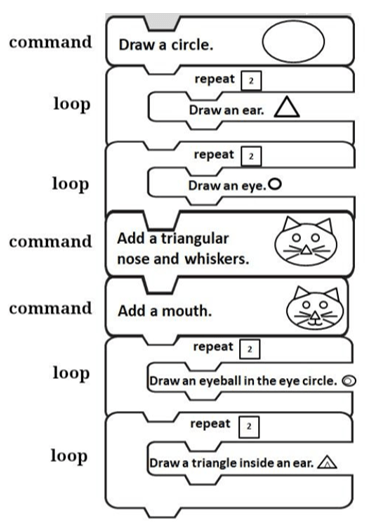
In coding, a loop is a command used to repeat a part of code until the desired process is complete.
In the coding blocks that we used to draw the cat we used “commands” and “loops”?
4.
We can create moving images and even games, using websites like SCRATCH.
Scratch is a programming website that makes it easy to create interactive art, stories, and games. In the next lesson you will create a moving image, using Scratch.
5.
Code blocks in Scratch
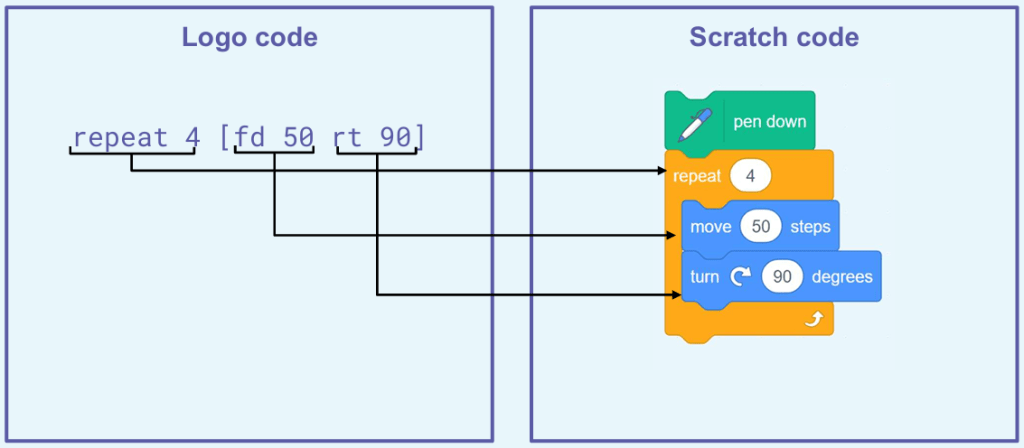
This sequence of code is from this programming tool, Scratch. It uses coloured blocks of code.
What will this code snippet do?
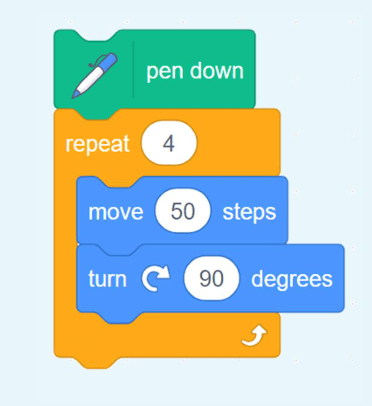
What each block might do…
- The pen down block might use a pen to draw on screen.
- The repeat block might repeat something four times.
- The move steps block may instruct how to move.
- The turn degrees block may instruct something to turn.
Can you predict what might be created on-screen once the code has been run?
The code blocks shown will draw a square on the screen. The repeat happens four times, and each turn is through 90 degrees.
6.
Here is another way of programming , called Logo.
What similarities can you see in these code snippets?
7.
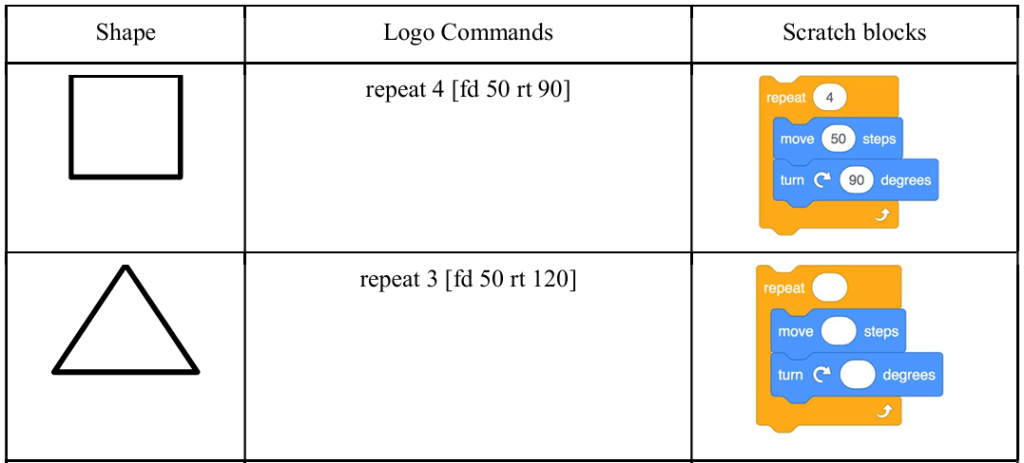
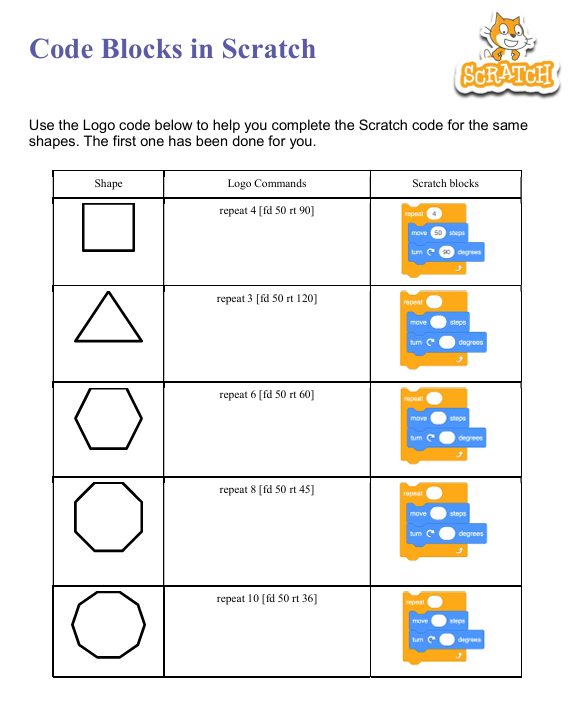
Complete the ‘Code blocks in Scratch’ on the worksheet. You need to create Scratch code snippets by using the Logo code snippets as a guide.
Code blocks in Scratch
Use the Logo code snippets on the ‘Code blocks in Scratch’ worksheet to help you complete the Scratch code snippets.
EXAMPLE
8.
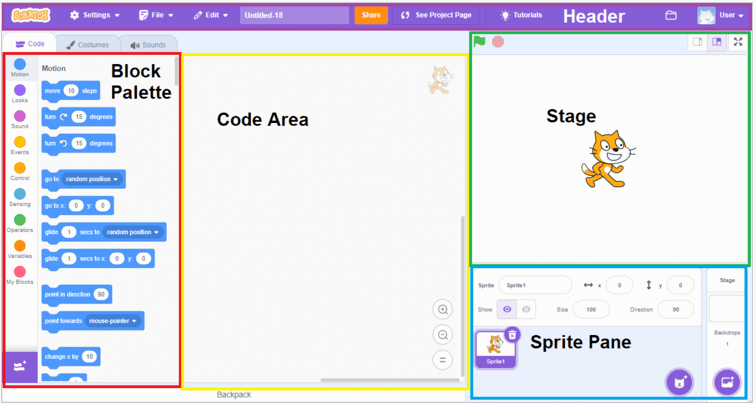
What is what in Scratch…?
9.
Let’s get Scratch ready for you to do some coding!
-1-
Click on the picture open Scratch.
-2-
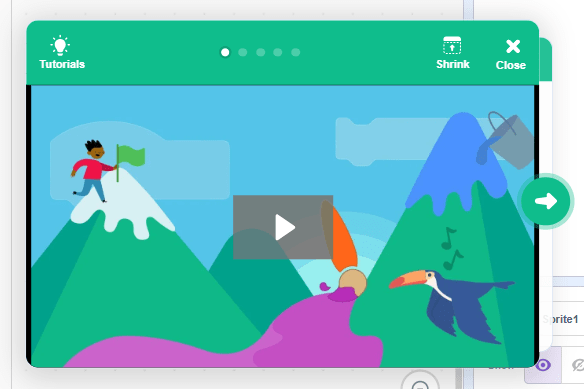
Click on Create

-3-
Close the instruction video
-4-
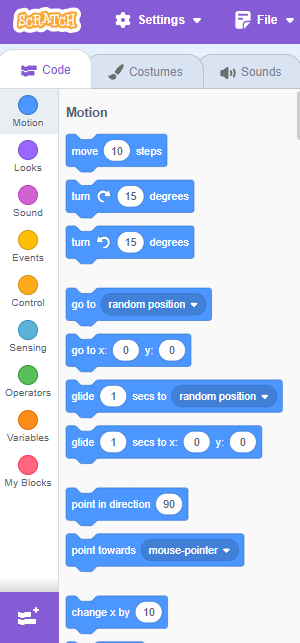
Close on the “extension button”. (It is a purple box at the bottom of the screen.)
-5-
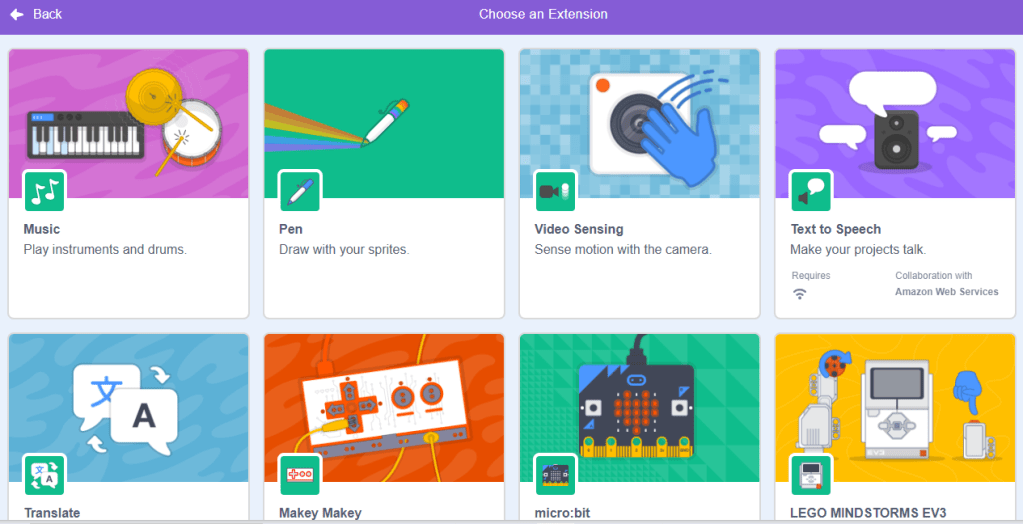
Click on the pen to add draw option coding blocks.
-6-
Click on the pen to add draw option coding blocks.
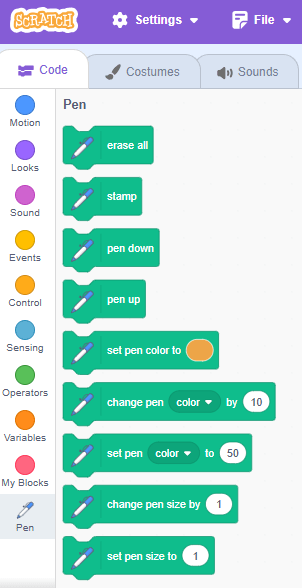
-7-
Drag the “erase all” coding block to the code area.
(You will need this block later on to clear the stage, every time after you have run a code.)
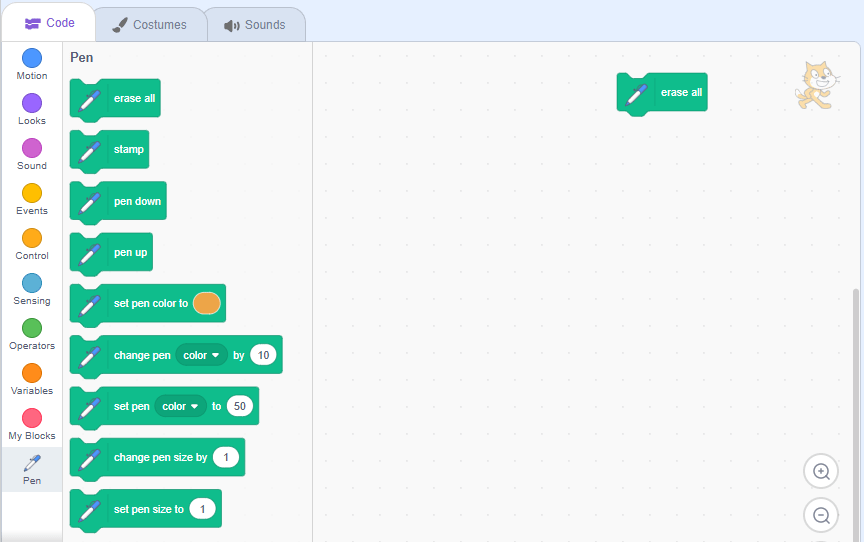
Now you are ready to start programming!
10.
Let’s use Scratch to create different shapes!
Drawing a Square. (0:50 minutes long)
11.

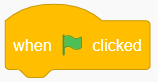
Drag these coding blocks to the code area to create a square.
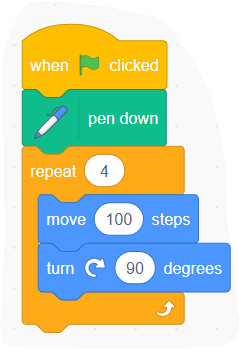
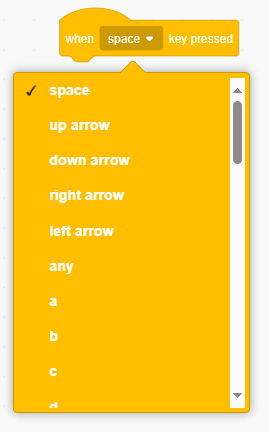
Let’s change the block used to run the code. The triangle must be drawn when the ‘S’ key on the keyboard is pressed.
Event Handler Keys. (1:35 minutes long)
Click on the “erase all” block to clear the stage:
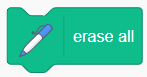
Remove this block:
Use this block:
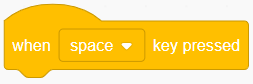
Chance the instruction to “when ‘S’ key pressed”.
12.

Click on the “erase all” block to clear the stage:
Change the coding blocks in the code area in this way, to create a triangle:
Let’s change the block used to run the code. The triangle must be drawn when the ‘T’ key on the keyboard is pressed.
Click on the “erase all” block to clear the stage:
Remove this block:
Use this block:
Chance the instruction to “when ‘T’ key pressed”.
13.

Click on the “erase all” block to clear the stage:
Change the coding blocks in the code area in this way, to create a hexagon:
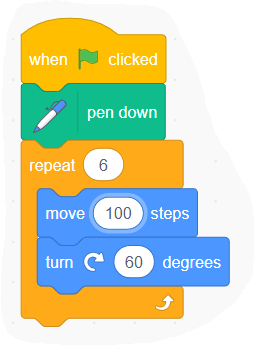
Let’s change the block used to run the code. The triangle must be drawn when the ‘H’ key on the keyboard is pressed.
Click on the “erase all” block to clear the stage:
Remove this block:
Use this block:
Chance the instruction to “when ‘H’ key pressed”.
14.

Click on the “erase all” block to clear the stage:
Change the coding blocks in the code area in this way, to create an octagon:
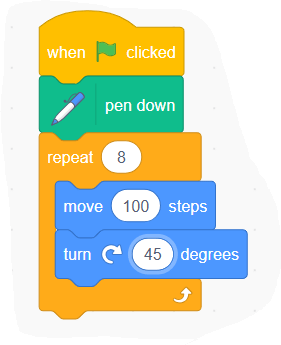
Let’s change the block used to run the code. The triangle must be drawn when the ‘O’ key on the keyboard is pressed.
Click on the “erase all” block to clear the stage:
Remove this block:
Use this block:
Chance the instruction to “when ‘O’ key pressed”.
15.

Click on the “erase all” block to clear the stage:
Change the coding blocks in the code area in this way, to create a decagon:
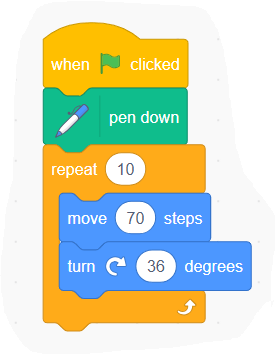
Let’s change the block used to run the code. The triangle must be drawn when the ‘D’ key on the keyboard is pressed.
Click on the “erase all” block to clear the stage:
Remove this block:
Use this block:
Chance the instruction to “when ‘D’ key pressed”.
16.
A Quick Test:
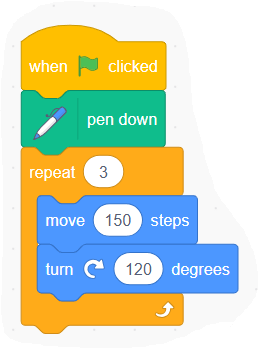
Look at this Scratch code and say what shape it will make:
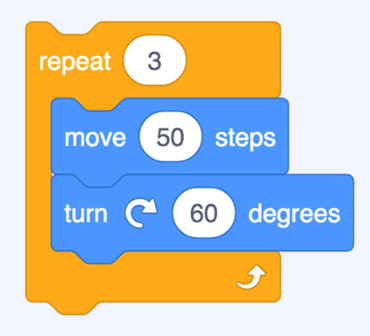
Which of the three images below would be produced after running the code. Explain your reasoning.
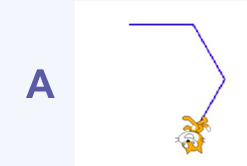
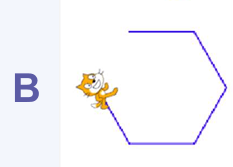
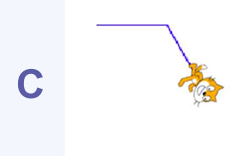
The correct answer is A, as the loop repeats the forward and turn blocks three times before stopping.

This is the original lesson source:
(WordPress advertisements may appear below.)
 Best study methods